
# API and Menu Management Functionality
Function Background
The API and Menu Management functionality enables Host-App developers to grant different Mini-Programs the ability to use custom APIs and menus based on their own management and maintenance requirements.
# 1. Function Introduction
When integrating Mini-Programs into a Host-App, there may be scenarios requiring the assignment of different permissions to Mini-Programs from various sources (e.g., granting advanced permissions such as transaction payments and private information management to in-house Mini-Programs, while assigning general permissions like user authorization login to third-party Mini-Programs). To ensure unified management of the permissions available to different Mini-Programs, the API and Menu Management functionality can be utilized.
# 2. Usage Process
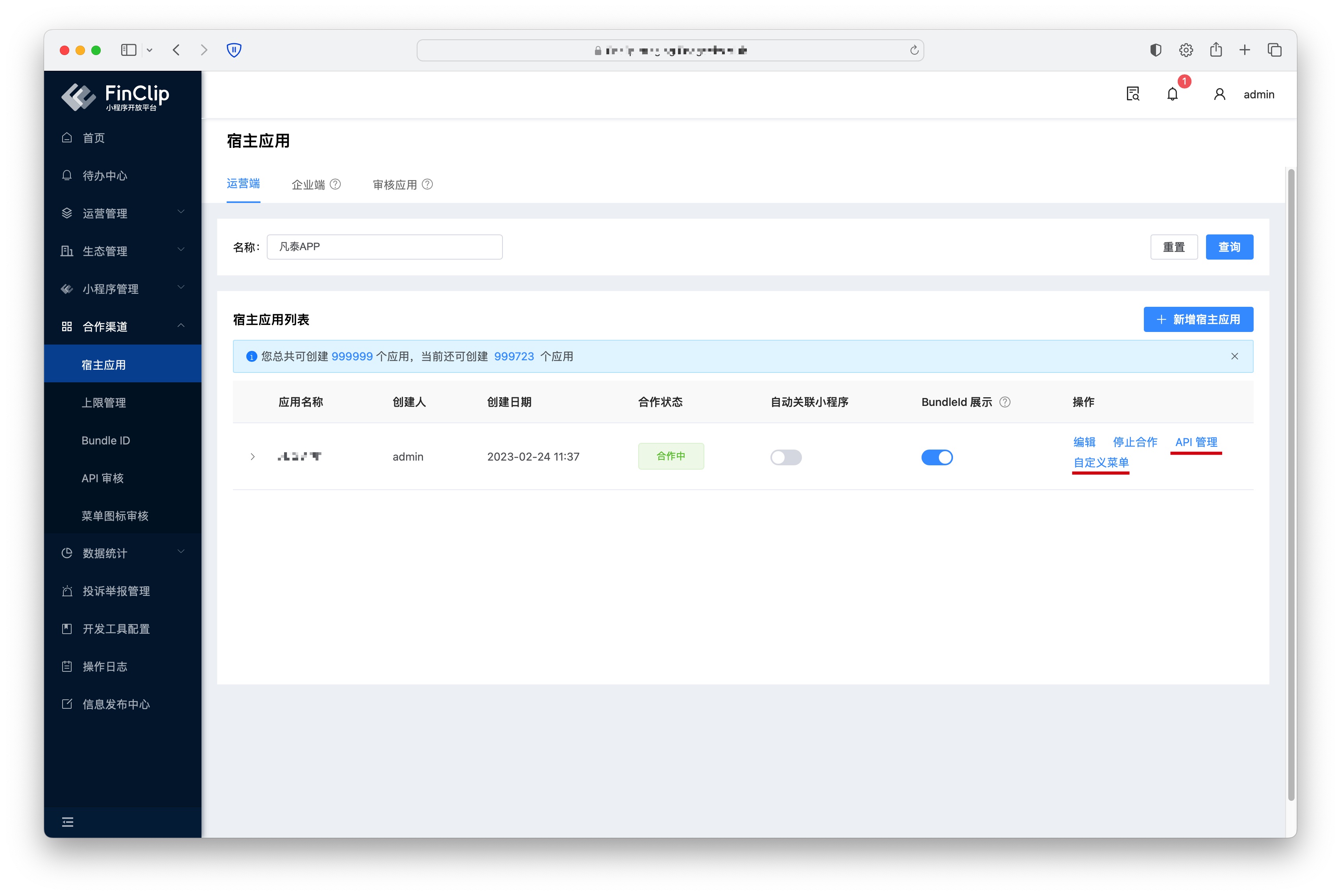
In the Enterprise Edition environment, administrators need to access the "Host-App" page and add the associated APIs and menu icons for the specified App.
# 2.1 Custom API Management
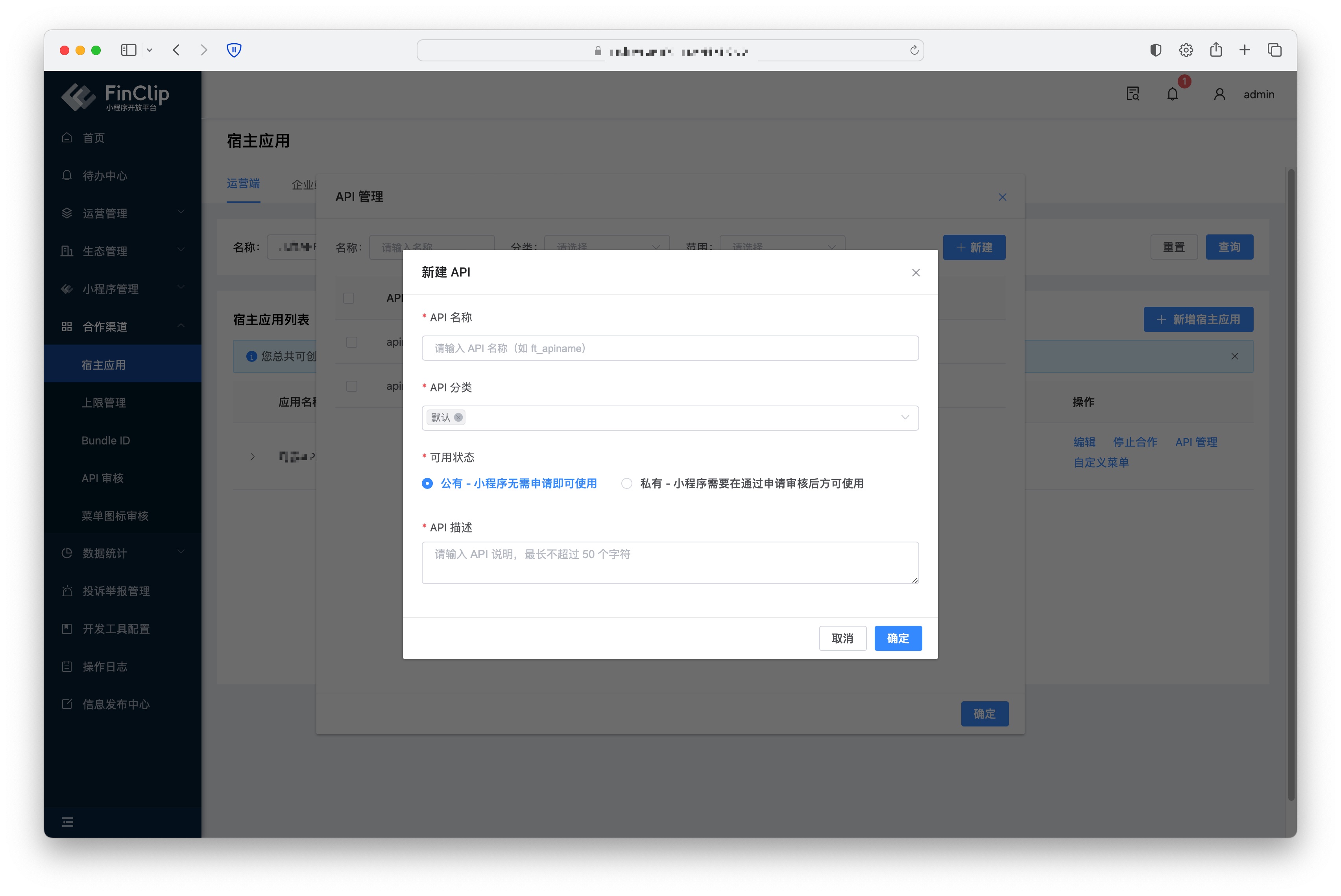
Click "API Management" on the right to register the relevant APIs injected via custom methods in the Host-App. The required information to be entered includes:
- API Name: The specific name of the API.
- API Category: A classification tag for the API, assisting developers in managing and filtering the available scope.
- Availability Status: Divided into "Public" and "Private" statuses. Public types can be used by Mini-Program developers without application, while private types require application and approval before use.
- Description: Supplementary description information for the API.
# 2.2 Custom Menu Management
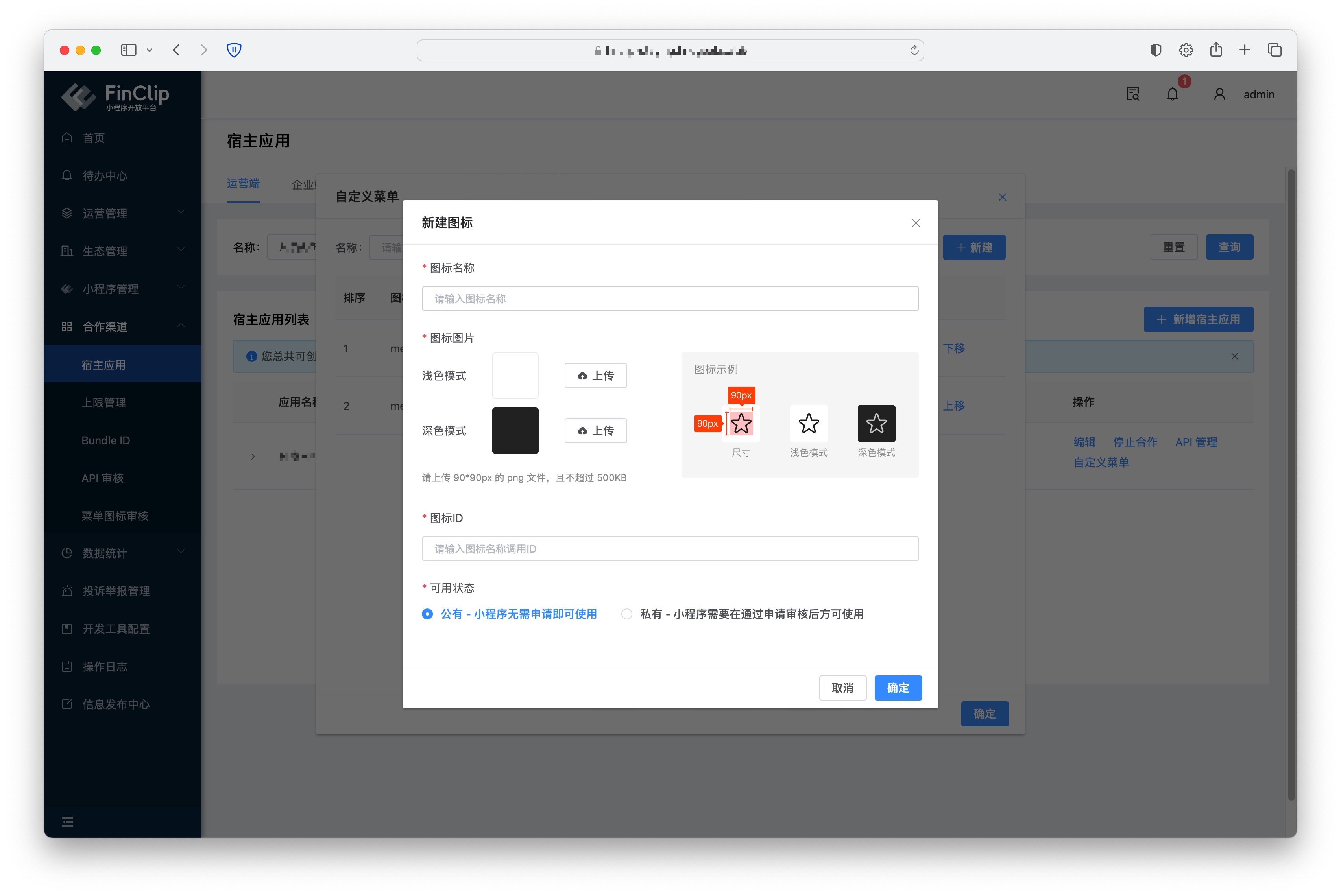
Click "Custom Menu" on the right to register the relevant menu buttons in the Host-App. The required information to be entered includes:
- Icon Name: The specific name of the menu icon.
- Icon Image: The image content of the icon, including images for both light mode and dark mode.
- Icon ID: The ID information called within the Mini-Program.
- Availability Status: Divided into "Public" and "Private" statuses. Public types can be used by Mini-Program developers without application, while private types require application and approval before use.
Please Note
To call menu icons within a Mini-Program, they must be used via self-injection. For the guide, please click UI Customization/Setting Mini-Program More Menu/12. Self-injecting Menu Items in the More Panel
# 2.3 Applying to Use APIs and Menus
After completing the above configurations, Mini-Program developers can apply for corresponding permissions for their Mini-Programs by clicking "Associate API" or "Associate Menu Icon" next to the specified App on the "Host-App" page.
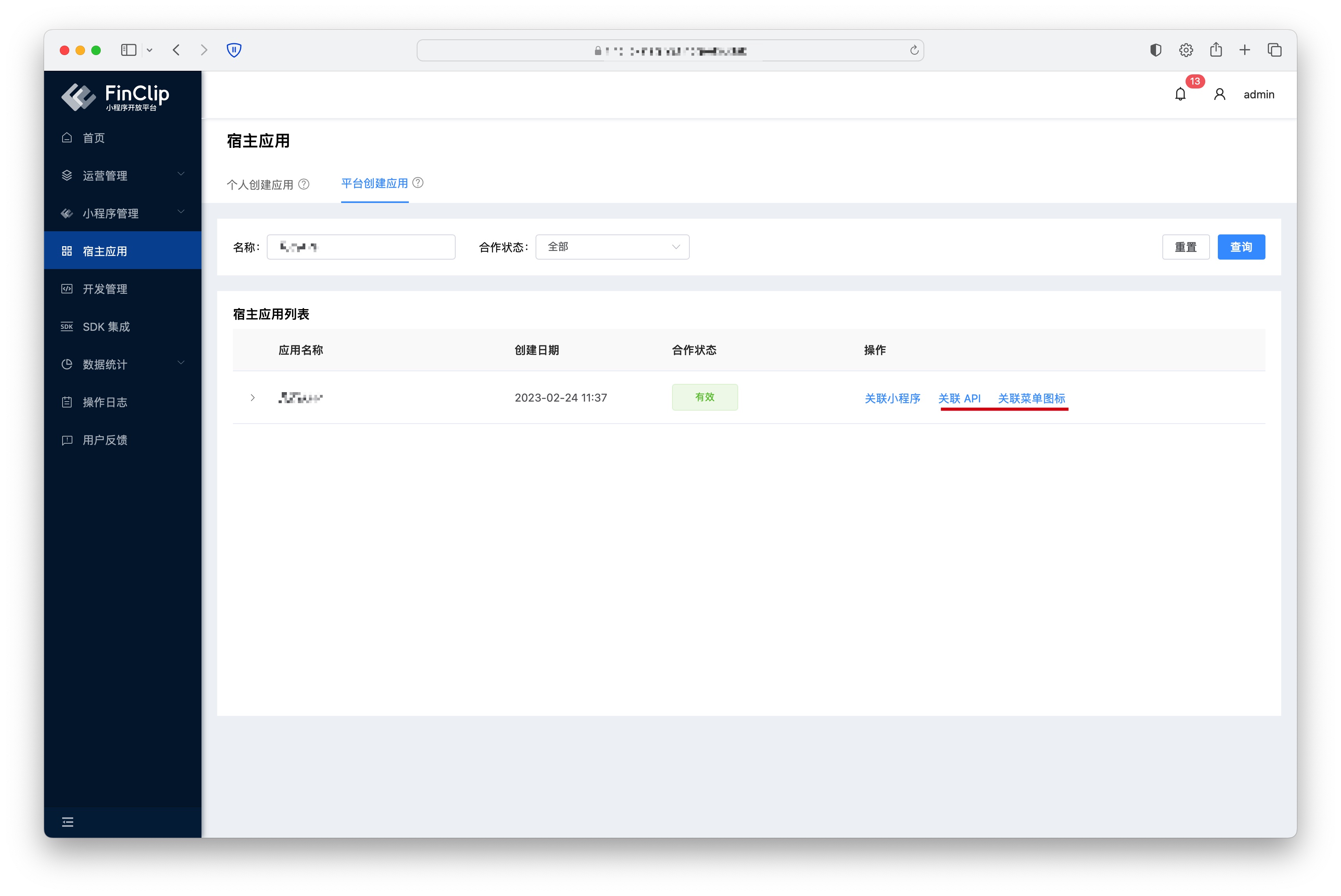
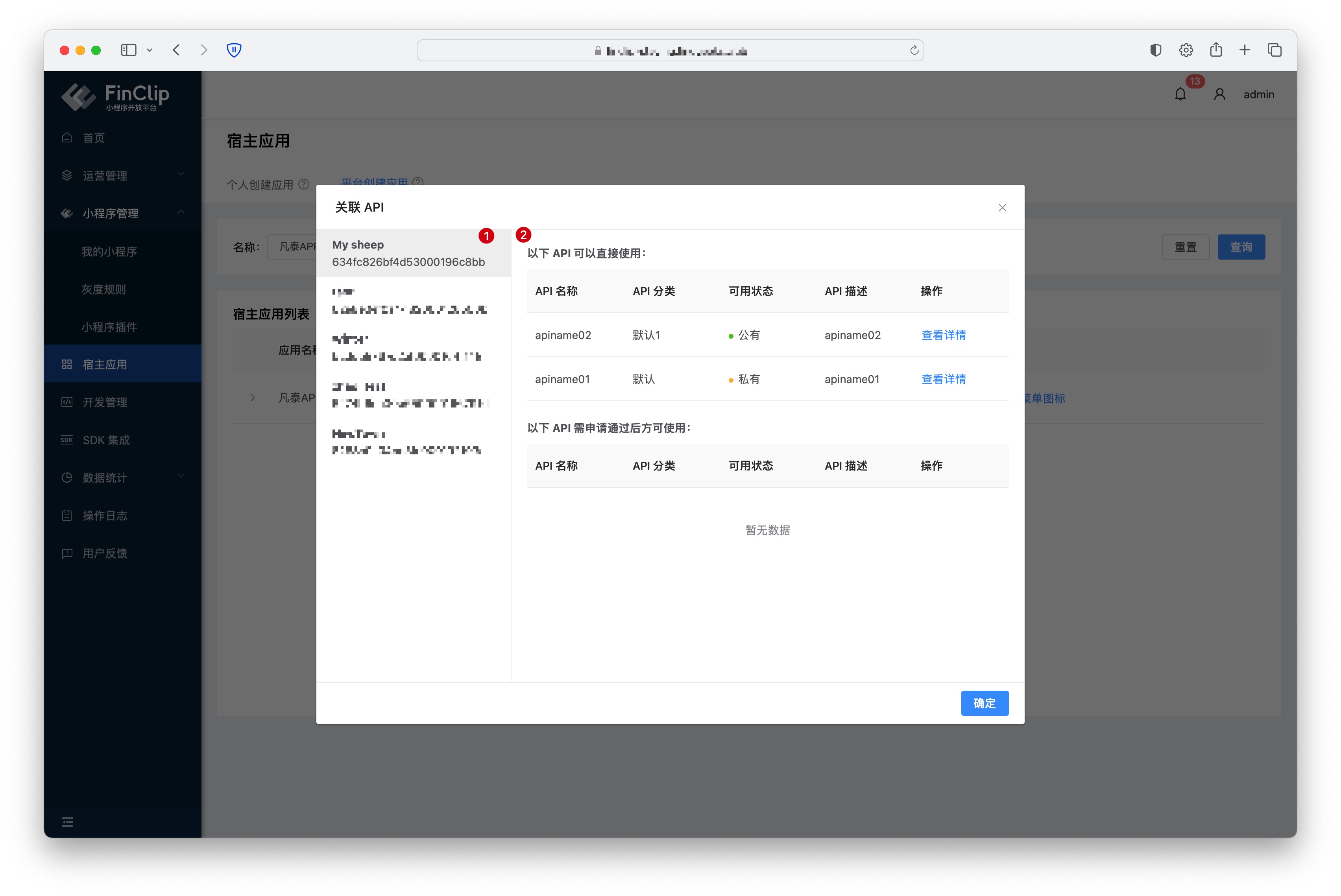
The opened "Associate API" popup is divided into two parts: the left part (Figure 1 below) lists the Mini-Programs manageable by the current account, and the right part (Figure 2 below) lists the APIs available in the App. Mini-Program developers can click the "View Details" button next to an API to apply for its use.
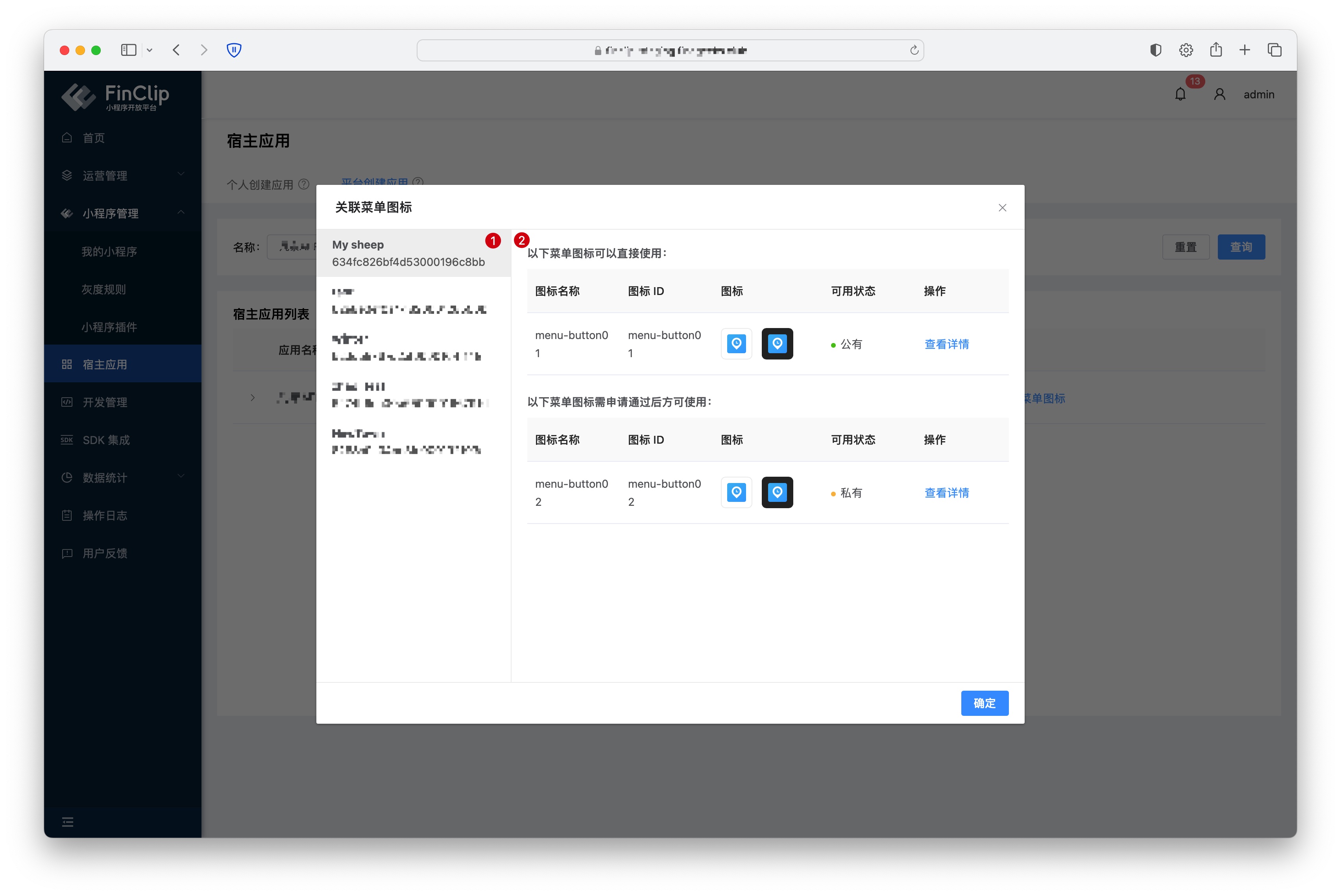
The opened "Associate Menu Icon" popup is divided into two parts: the left part (Figure 1 below) lists the Mini-Programs manageable by the current account, and the right part (Figure 2 below) lists the menu icons available in the App. Mini-Program developers can click the "View Details" button next to a menu icon to apply for its use.
# 3. Functionality and Environment Comparison
The current functionality may have differences and limitations in different environments. For details, please refer to the table below. To learn more about the differences and introductions between different versions, click here (opens new window).
| Community Edition Environment | SaaS Environment | Enterprise Edition (Annual Payment or One-time Purchase) | |
|---|---|---|---|
| API and Menu Management Functionality | ❌ | ✅ | Available upon request |
